Getting Started with FortyPOS: A Simple Setup Guide for New Businesses
- Category : Getting Started
- For : New Businesses & New Users
- Read : 9 Minutes
Starting with a new POS system should not feel complicated. The best setup is one that helps you record sales correctly from day one, keeps products and stock organized, gives staff the right access, and produces useful reports when you need to make business decisions.
FortyPOS is built to help businesses manage sales, products, stock, purchases, customers, suppliers, expenses, staff roles, receipts, and reports from one connected platform. This guide walks you through the most important setup steps so your business can start using FortyPOS with better control and fewer mistakes.
A good POS setup is not only about adding products. It is about preparing the business workflow: users, permissions, products, stock, payments, receipts, expenses, and reports.
Why the first setup matters
Many businesses start using a POS quickly, but skip important setup details. Later, they struggle with wrong stock, missing product costs, unclear staff access, poor receipt details, and reports that do not tell the full story. A careful setup helps prevent these problems before daily operations become busy.
The goal is not to configure everything perfectly on the first day. The goal is to set the foundation correctly: business details, products, categories, opening stock, staff users, payment methods, receipts, and basic reports. You can then improve the setup as the business grows.
1. Create your business account
Start by creating your FortyPOS account and adding the main business information. This includes the business name, contact details, location, and other information that may appear on receipts, invoices, and reports. Clear business details make your documents look more professional and make it easier for customers to identify the business.
Use the correct business name from the beginning, especially if you serve customers who need formal receipts or invoices. If you operate a shop, pharmacy, hardware, mini-market, service business, wholesale business, salon, beauty shop, or branch-based business, the account details become the identity behind your sales records.
2. Follow the setup wizard
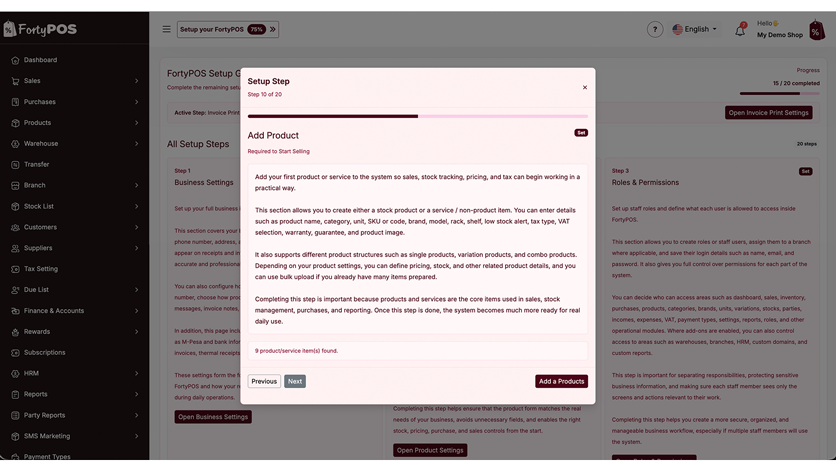
FortyPOS includes a setup flow that guides new users through important areas of the system. Instead of trying to discover every menu manually, use the setup wizard as your checklist. It helps you move from business settings to product settings, roles, payment types, taxes, branches, categories, units, products, customers, sales, purchases, expenses, and reporting.
This is useful because a new business owner may not know which module to configure first. The setup wizard gives direction so the business can avoid gaps such as adding sales before products are properly organized or creating staff users before permissions are clear.
3. Use page tour guides when you need help
As you move around FortyPOS, look out for the help or tour guide icon. The tour guides are designed to explain specific pages and actions, such as creating products, setting categories, managing purchases, adding customers, adjusting stock, and understanding important buttons on a page.
This is helpful for staff training. A cashier may need guidance on the sales screen, while an admin may need guidance on product setup, roles, reports, or purchase workflows. Using the guides reduces guesswork and helps the team learn the system faster.
4. Add product categories, units, and product details
Products become easier to manage when they are organized properly. Before adding many products, decide how you want to group them. For example, a retail shop may use categories such as groceries, cosmetics, stationery, drinks, electronics, or household items. A hardware may use categories such as plumbing, electricals, tools, cement, paint, and fittings.
Units also matter. Some products are sold in pieces, cartons, packets, kilograms, litres, metres, or services. Good unit setup helps staff select the right product and reduces confusion when reviewing stock or sales reports.
Product name
Use clear names that staff can search and identify quickly during sales.
Buying and selling prices
Record accurate costs and prices so profit and product reports become more useful.
Opening stock
Add starting quantities carefully so your stock reports begin from a reliable position.
Product type
Separate stock products from services or non-stock items where applicable.
5. Decide how to handle stock
Stock control is one of the biggest reasons businesses move to a POS system. If products are entered wrongly at the beginning, the business may later see incorrect quantities, confusing low-stock alerts, wrong purchase records, and unreliable inventory reports.
Before going live, confirm your opening stock for the main products. You do not have to add every item perfectly at once, but your most important and fast-moving products should be correct. Also decide which items are tracked as stock products and which ones are services or non-stock items.
6. Add staff users and assign roles
A POS system becomes safer when each staff member uses their own account. This helps the business know who made a sale, who handled a purchase, who edited a record, or who accessed a report. Shared logins make it harder to trace activity and can create accountability issues.
Create users for cashiers, managers, accountants, storekeepers, branch staff, or admins depending on your business structure. Then assign permissions based on what each person should do. For example, a cashier may only need sales access, while a manager may need reports, products, purchases, and stock access.
7. Set up payment types
Most businesses receive payments through different methods such as cash, M-Pesa, bank, card, or credit. Setting up payment types makes daily reconciliation easier because the business can separate cash sales from mobile money, bank transfers, and other payments.
This also helps when checking end-of-day collections. Instead of only seeing total sales, the owner can understand how money was received and compare POS records with actual cash, till transactions, or bank records.
8. Add customers and suppliers where needed
Not every sale requires a customer profile, but customer records are useful when the business gives credit, tracks balances, sells to repeat customers, or issues formal invoices. Supplier records are important when purchases, supplier balances, and stock restocking need to be organized.
Good customer and supplier records help the business follow up on payments, review purchase history, check outstanding balances, and understand relationships better. This turns the POS from a sales tool into a stronger business management system.
9. Make your first sale
After adding products, users, and payment methods, record a test sale or your first real sale. Select the product, confirm quantity, confirm price, choose the payment method, and complete the transaction. This helps you understand how sales affect receipts, stock, customer balances, and reports.
During the first few sales, pay attention to product search, price accuracy, stock deduction, cashier selection, discount handling, tax if applicable, and receipt output. If anything looks wrong, correct the setup early before many transactions are recorded.
10. Print or share receipts and invoices
Receipts and invoices create proof of purchase for customers and a clean record for the business. Depending on your setup, you may need thermal receipts for fast counter sales or A4 invoices for more formal transactions. Make sure your receipt details are clear before serving many customers.
A proper receipt should show the business name, date, sale reference, items, quantities, prices, total, amount paid, balance if applicable, and payment method. This improves trust and makes customer follow-ups easier.
11. Review your first reports
Reports become useful as soon as real transactions are recorded. Start with daily sales, product-wise sales, payment summaries, stock reports, customer balances, purchases, expenses, and profit-related reports where applicable. These reports help you understand what is happening instead of relying only on memory or handwritten notes.
Use date filters to compare today, yesterday, this week, this month, or a custom period. This helps you review performance during promotions, supplier cycles, salary periods, rent periods, and month-end business checks.
12. Train your team before going fully live
A good system can still produce poor records if the team is not trained. Show cashiers how to search products, complete sales, apply the right payment method, issue receipts, and avoid duplicate entries. Show managers how to review reports, handle stock, manage purchases, and follow up on balances.
Training does not need to happen in one long session. Start with the most common daily tasks, then introduce advanced areas as the team becomes comfortable. The setup wizard and page tour guides can support this process.
Simple setup checklist
Use this checklist before you begin serving customers fully on FortyPOS. It helps confirm that the most important parts of the system are ready.
- Business profile completed
- Categories and units created
- Products and services added
- Opening stock confirmed
- Payment types configured
- Staff users created
- Roles and permissions assigned
- Customers and suppliers added where needed
- Receipt or invoice format checked
- First sale and first report reviewed
Common setup mistakes to avoid
Some setup mistakes can affect the quality of your reports later. Avoid adding products with unclear names, missing buying prices, wrong opening stock, duplicate categories, shared staff accounts, missing payment methods, and incomplete receipt details. These may look small at the beginning, but they can create confusion when the business becomes busy.
Also avoid waiting too long to review reports. Reports help you detect setup problems early. If a product is selling but stock is not reducing correctly, or if payments are not matching actual collections, it is better to fix the issue during the first few days than after weeks of transactions.
Key takeaways
- A clean setup makes daily sales, stock control, staff accountability, and reporting easier.
- Products, categories, units, opening stock, payment types, users, and permissions should be configured early.
- The setup wizard and page tour guides help new users learn the system faster.
- Reviewing your first reports helps confirm that sales, payments, stock, and receipts are being recorded correctly.
How FortyPOS helps
FortyPOS helps businesses in Kenya manage sales, products, stock, customers, suppliers, purchases, expenses, staff roles, branches, receipts, invoices, and reports from one connected platform. Whether you are opening a new shop or moving from manual records, FortyPOS gives you a structured way to start and grow with better business visibility.

Product-reviewed content
Written by the FortyPOS Product & Editorial Team
Our product, implementation and support team reviews feature descriptions against the current FortyPOS workflows. This page was reviewed on 28 July 2026.
This content explains software and operating workflows. It is not a substitute for legal, tax, accounting, medical or regulatory advice.